Viewing and Browsing in IMSMANG: Difference between revisions
No edit summary |
No edit summary |
||
| Line 3: | Line 3: | ||
The IMSMA Navigation Window has three panes: the [[Country Structure Pane]], the [[Map Pane]] and the [[Items Pane]]. The three panes work together. Users can browse through elements of any pane to view additional data appropriate to the kind of data the other panes hold. | The IMSMA Navigation Window has three panes: the [[Country Structure Pane]], the [[Map Pane]] and the [[Items Pane]]. The three panes work together. Users can browse through elements of any pane to view additional data appropriate to the kind of data the other panes hold. | ||
The Items pane displays most recently approved information. Each item has its own [[Summary Window]] that can be opened to browse for linked information and details. Throughout IMSMANG, functions and features display in smaller windows over the IMSMA Navigation window. | The Items pane displays most recently approved information. Each item has its own [[Summary Window]] that can be opened to browse for linked information and details. Throughout {{IMSMANG}}, functions and features display in smaller windows over the IMSMA Navigation window. | ||
}} | }} | ||
Revision as of 22:09, 4 February 2014
The IMSMA Navigation Window has three panes: the Country Structure Pane, the Map Pane and the Items Pane. The three panes work together. Users can browse through elements of any pane to view additional data appropriate to the kind of data the other panes hold.
The Items pane displays most recently approved information. Each item has its own Summary Window that can be opened to browse for linked information and details. Throughout IMSMANG, functions and features display in smaller windows over the IMSMA Navigation window.
Interacting with Panes
| How To |
|---|
|
{{#if:Country Structure Pane | |}}{{#if:Map Pane | |}}{{#if:Items Pane | |}}{{#if:|
|
- Selecting the country structure area of your choice
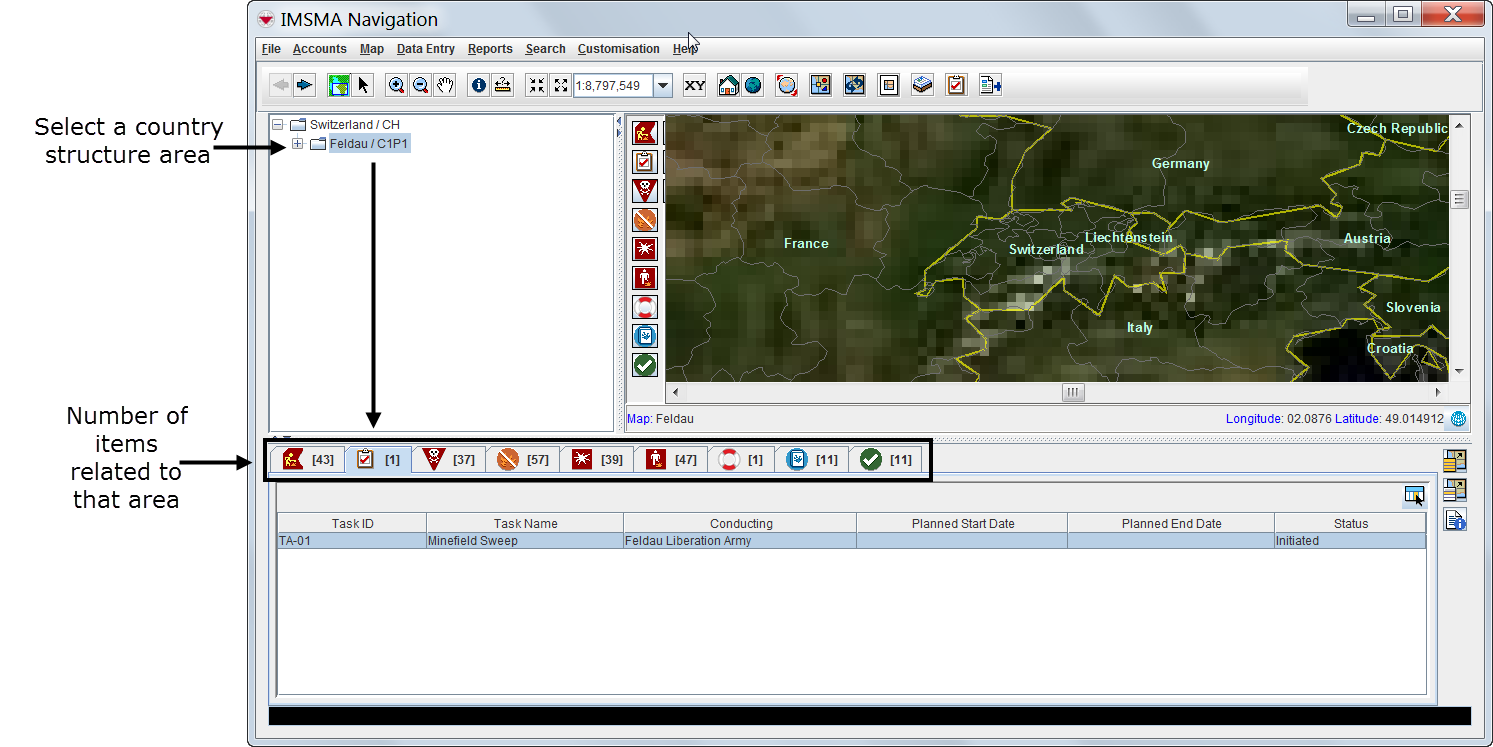

- Displaying items on the map
- File:VaB02.png
 |
Items with a grey background in the items pane do not have geographic coordinates and they cannot be displayed on the map. |
- Identifying an item from the map
- Click the Select icon on the navigation bar.
- Drag the cursor around the icon or icons that you want to select. The corresponding item records will be highlighted in the items panel.
Viewing Additional Data on the Map
| How To |
|---|
|
{{#if:Explore the Toolbars | |}}{{#if:|
|
- Using the map tools
|
Using the map tools activates the map status bar in the bottom of the IMSMA Navigation window. |
- Displaying items by subcategories
- File:VaB07.png
- Displaying auxiliary data
- Displaying labels
Browsing the Items Pane
Rearranging Displayed Items
Displaying New Column Headings
Viewing a Specific Item Summary Window
| How To |
|---|
|
{{#if:Access the Summary Windows | |}}{{#if:|
|
|
Summary windows can be customised and may present different tabs and summary headings. Contact your local administrator if you cannot find the links table. |
Viewing Linked Items of the Selected Item


|
Links reflect the reconciliation steps performed before the approval of the selected item. For more details on reconciling and approving data, see Reconciling and Approving Data in IMSMANG. |
Viewing Associated Data Entry Forms

Browsing Locations

Browsing Tasks

|
Task is neither an auxiliary data nor an item, thus it does not have Summary Window |
Viewing Auxiliary Data Lists
| How To |
|---|
|
{{#if:Country Structure Auxiliary data | |}}{{#if:Assistance Auxiliary data | |}}{{#if:Ordnance Auxiliary data | |}}{{#if:Organisation Auxiliary data | |}}{{#if:Place Auxiliary data | |}}{{#if:|
|
- Choose Data entry > select an auxiliary data type.


|
Lists of auxiliary data provide direct access for adding new data or editing existing data. |
{{#switch:|subgroup|child=|none=|#default=
{{#if:|<th scope="col" style="border-left:2px solid #fdfdfd;width:100%;|}}{{#if:|{{#if:Using IMSMANG|}}}}{{#if: Starting and Stopping IMSMANG · Viewing and Browsing in IMSMANG · Searching for Data in IMSMANG · Using Data Entry Forms · Reconciling and Approving Data in IMSMANG · Importing and Exporting Data with IMSMANG · Using the Tasking Tool in IMSMANG · Producing Reports Using IMSMANG · Printing the Map in IMSMANG · Using the Impact Scoring Tool in IMSMANG · Using the IMSMANG Help Menu · Setting User Preferences · Get started with IMSMA · Getting IMSMA systems Installation Package |{{#if:Using IMSMANG|}}{{#if:|}}{{#if:|<td style="text-align:left;border-left-width:2px;border-left-style:solid;|{{#if:|}}}}{{#if:|{{#if:Using IMSMANG Starting and Stopping IMSMANG · Viewing and Browsing in IMSMANG · Searching for Data in IMSMANG · Using Data Entry Forms · Reconciling and Approving Data in IMSMANG · Importing and Exporting Data with IMSMANG · Using the Tasking Tool in IMSMANG · Producing Reports Using IMSMANG · Printing the Map in IMSMANG · Using the Impact Scoring Tool in IMSMANG · Using the IMSMANG Help Menu · Setting User Preferences · Get started with IMSMA · Getting IMSMA systems Installation Package |}}{{#if:|<td style="text-align:left;border-left-width:2px;border-left-style:solid;|}}{{#if:|{{#if:Using IMSMANG Starting and Stopping IMSMANG · Viewing and Browsing in IMSMANG · Searching for Data in IMSMANG · Using Data Entry Forms · Reconciling and Approving Data in IMSMANG · Importing and Exporting Data with IMSMANG · Using the Tasking Tool in IMSMANG · Producing Reports Using IMSMANG · Printing the Map in IMSMANG · Using the Impact Scoring Tool in IMSMANG · Using the IMSMANG Help Menu · Setting User Preferences · Get started with IMSMA · Getting IMSMA systems Installation Package |}}{{#if:|<td style="text-align:left;border-left-width:2px;border-left-style:solid;|}}{{#if:|{{#if:|<td style="text-align:left;border-left-width:2px;border-left-style:solid;|}}{{#if:|{{#if:|<td style="text-align:left;border-left-width:2px;border-left-style:solid;|}}{{#if:|{{#if:|<td style="text-align:left;border-left-width:2px;border-left-style:solid;|}}{{#if:|{{#if:|<td style="text-align:left;border-left-width:2px;border-left-style:solid;|}}{{#if:|{{#if:|<td style="text-align:left;border-left-width:2px;border-left-style:solid;|}}{{#if:|{{#if:|<td style="text-align:left;border-left-width:2px;border-left-style:solid;|}}{{#if:|{{#if:|<td style="text-align:left;border-left-width:2px;border-left-style:solid;|}}{{#if:|{{#if:|<td style="text-align:left;border-left-width:2px;border-left-style:solid;|}}{{#if:|{{#if:|<td style="text-align:left;border-left-width:2px;border-left-style:solid;|}}{{#if:|{{#if:|<td style="text-align:left;border-left-width:2px;border-left-style:solid;|}}{{#if:|{{#if:|<td style="text-align:left;border-left-width:2px;border-left-style:solid;|}}{{#if:|{{#if:|<td style="text-align:left;border-left-width:2px;border-left-style:solid;|}}{{#if:|{{#if:|<td style="text-align:left;border-left-width:2px;border-left-style:solid;|}}{{#if:|{{#if:|<td style="text-align:left;border-left-width:2px;border-left-style:solid;|}}{{#if:|{{#if:|<td style="text-align:left;border-left-width:2px;border-left-style:solid;|}}{{#if:|{{#if:|<td style="text-align:left;border-left-width:2px;border-left-style:solid;|}}{{#if:|{{#if:|<td style="text-align:left;border-left-width:2px;border-left-style:solid;|}}{{#if:|{{#if:Using IMSMANG Starting and Stopping IMSMANG · Viewing and Browsing in IMSMANG · Searching for Data in IMSMANG · Using Data Entry Forms · Reconciling and Approving Data in IMSMANG · Importing and Exporting Data with IMSMANG · Using the Tasking Tool in IMSMANG · Producing Reports Using IMSMANG · Printing the Map in IMSMANG · Using the Impact Scoring Tool in IMSMANG · Using the IMSMANG Help Menu · Setting User Preferences · Get started with IMSMA · Getting IMSMA systems Installation Package |}}}}| }}<table cellspacing="0" class="nowraplinks hlist {{#if:Using IMSMANG|{{#switch:autocollapse|plain|off=|#default=collapsible {{#if:autocollapse|autocollapse|autocollapse}}}}}} {{#switch:|subgroup|child|none=navbox-subgroup" style="border-spacing:0;;|#default=navbox-inner" style="border-spacing:0;background:transparent;color:inherit}};;">{{#if:Using IMSMANG| | ||||
{{{above}}} | ||||
{{{imageleft}}} | {{{group1}}} |
Starting and Stopping IMSMANG · Viewing and Browsing in IMSMANG · Searching for Data in IMSMANG · Using Data Entry Forms · Reconciling and Approving Data in IMSMANG · Importing and Exporting Data with IMSMANG · Using the Tasking Tool in IMSMANG · Producing Reports Using IMSMANG · Printing the Map in IMSMANG · Using the Impact Scoring Tool in IMSMANG · Using the IMSMANG Help Menu · Setting User Preferences · Get started with IMSMA · Getting IMSMA systems Installation Package |
{{{image}}} | |
| {{{group2}}} |
{{{list2}}} | |||
| {{{group3}}} |
{{{list3}}} | |||
| {{{group4}}} |
{{{list4}}} | |||
| {{{group5}}} |
{{{list5}}} | |||
| {{{group6}}} |
{{{list6}}} | |||
| {{{group7}}} |
{{{list7}}} | |||
| {{{group8}}} |
{{{list8}}} | |||
| {{{group9}}} |
{{{list9}}} | |||
| {{{group10}}} |
{{{list10}}} | |||
| {{{group11}}} |
{{{list11}}} | |||
| {{{group12}}} |
{{{list12}}} | |||
| {{{group13}}} |
{{{list13}}} | |||
| {{{group14}}} |
{{{list14}}} | |||
| {{{group15}}} |
{{{list15}}} | |||
| {{{group16}}} |
{{{list16}}} | |||
| {{{group17}}} |
{{{list17}}} | |||
| {{{group18}}} |
{{{list18}}} | |||
| {{{group19}}} |
{{{list19}}} | |||
| {{{group20}}} |
{{{list20}}} | |||
{{{below}}} | ||||
{{#switch:|subgroup|child=
|doc
|sandbox
|testcases =
|#default = {{#switch:hlist
 |plainlist
 |hlist
 |hlist hnum
 |hlist vcard
 |vcard hlist =
 |#default =
 }}
}}
}}}}}}