How to install ArcEngine 10.1 with higher version of ArcGIS
 |
The installation programs for ESRI products reads in the registry at start up which versions are already installed and if it is not the same version as the installation program then the installation program does not start. The work-around is to rename the registry keys that the installation program uses.
Starting from 10.4 the ArcGIS Administrator / license files are changed and therefore another work-around has to be applied for the ArcEninge 10.1 license. |
This instructions on this case work for:
- when ArcGIS with higher version than 10.1 is already installed on the computer and you would like to install IMSMANG V6.0 which uses ArcEngine 10.1.
- when ArcEngine 10.1 is installed and you want to install a newer version of ArcGIS
Try first with not uninstall ArcGIS with higher version than 10.1 before installing IMSMANG including ArcEngine. So far we have been able to get it to work without needing to uninstall.
Step 1 - Case Installing ArcEngine 10.1 and all higher versions of ArcGIS
| These PrSc are examples from the registry | ||
|---|---|---|
 |
 |
 |
- You need to rename all RealVersion or Version registry keys containing the version that ESRI's installation program is in conflict with e.g. 10.1 or 10.4 with RegEdit or otherwise it the installation program will detect that an ESRI product is installed with another version than that you would like to install.
- Take detailed notes on which keys you renamed. Easiest is to add something to the end of the key name e.g. RealVersion becomes RealVersionNG.
Examples:- HKEY_LOCAL_MACHINE\SOFTWARE\Wow6432Node\ESRI\ArcGIS\RealVersion rename to e.g. RealVersionNG
- HKEY_LOCAL_MACHINE\SOFTWARE\Wow6432Node\ESRI\Desktop10.2\RealVersion rename to e.g. RealVersionNG
- HKEY_LOCAL_MACHINE\SOFTWARE\Wow6432Node\ESRI\Desktop10.2\CoreRuntime\RealVersion rename to e.g. RealVersionNG
- Close RegEdit.
Step 2 - Case Installing ArcEngine 10.1 and all higher versions of ArcGIS
- If you have not already install IMSMANG then start with that.
- I recommend starting ArcEngine installation package manually from C:\IMSMAng\trayLauncher\exe\ArcGISEngine.
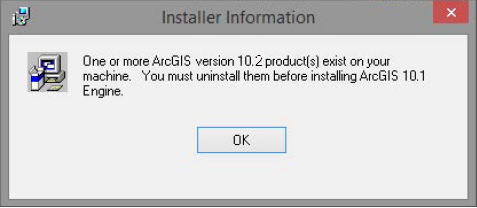
- If it is not possible to install ArcEngine 10 .1 due to ArcGIS with higher version is already installed then there are more registry keys that needs to be renamed.
- Activate the license from the IMSMANG Client Configuration tool.
- Open ArcGIS administrator
- In the lower left part of the window, you see a drop-down list where you can select version. Select 10.1. Next actions depends on which version of ArcGIS (Administrator) is installed.


Step 3 - Case Installing ArcEngine 10.1 with ArcGIS version 10.2 - 10.3
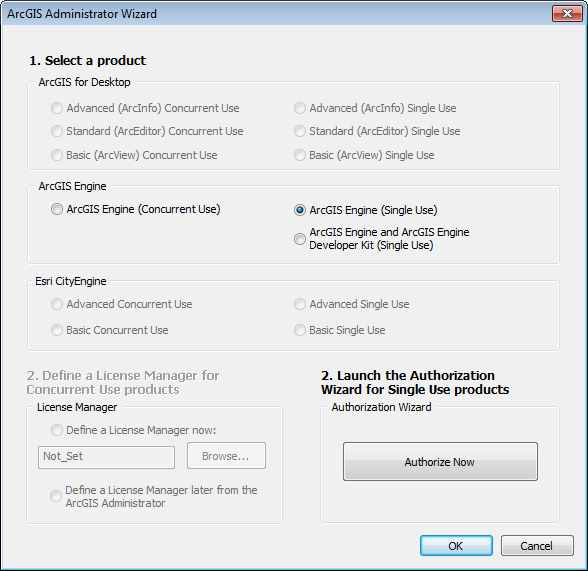
- Activate ArcEngine 10.1. If the expire date is not updated then you need to Activate the licence from TrayLauncher menu Client configuration.
- Start the IMSMANG client and verify all seems OK.
- Rename back all registry keys that you have modified in #1 to the original name e.g. RealVersion.
- Start ArcGIS and test both ArcMap and ArcCatalog.
- Restart the computer and test both IMSMANG and ArcGIS again.
- You are done.

Step 3 - Case Installing ArcEngine 10.1 with ArcGIS version 10.4 and higher (incl. ArcGIS Pro)
Starting from ArcGIS 10.4 the ArcAdministrator is so different that it is not possible to active our license for ArcEngine 10.1 with the ArcAdministrator.

The 10.1 pane in the ArcAdministrator is empty and it is not possible to select ArcGISEngine (Single Use).
- The work-around is to update a registry key.
- Start the IMSMANG client and verify all seems OK.
- Rename back all registry keys that you have modified in #1 to the original name e.g. RealVersion.
- Start ArcGIS and test both ArcMap and ArcCatalog.
- Restart the computer and test both IMSMANG and ArcGIS again.
- You are done.

Case ArcEngine 10.1 is installed and ArcGIS with higher version should be installed
- Verify that IMSMANG client is possible to start without error messages about ArcEngine license.
- You need to rename all RealVersion or Version registry keys containing the version that ESRI's installation program is in conflict with i.e. 10.1 with RegEdit or otherwise it the installation program will detect that an ESRI product is installed with another version than that you would like to install.
- Take detailed notes on which keys you renamed. Easiest is to add something to the end of the key name e.g. RealVersion becomes RealVersionNG.
Examples:- HKEY_LOCAL_MACHINE\SOFTWARE\Wow6432Node\ESRI\ArcGIS\RealVersion rename to e.g. RealVersionNG
- HKEY_LOCAL_MACHINE\SOFTWARE\Wow6432Node\ESRI\Desktop10.2\RealVersion rename to e.g. RealVersionNG
- HKEY_LOCAL_MACHINE\SOFTWARE\Wow6432Node\ESRI\Desktop10.2\CoreRuntime\RealVersion rename to e.g. RealVersionNG
- Close RegEdit.
- Start the ESRI installation program.
- If you still cannot start the ESRI installation program then there are more keys that need to be renamed.
- Start ArcGIS and test both ArcMap and ArcCatalog.
- Rename back all registry keys that you have modified in #2 to the original name e.g. RealVersion
- Restart the computer and test both IMSMANG and ArcGIS again.
- You are done.
The very last resort if you cannot get it to work
Do not give up too soon, you might just have missed to rename one key. If you did not get it to work then you have to:
- Uninstall ArcGIS 10.x and ArcEngine
- Restart the computer
- Open registry and check if any registry keys are left from the previous installations
- Install ArcEngine
- Register the ArcEngine license
- Start the IMSMA client and verify that it works
- Rename all RealVersion or Version registry keys created for 10.1 to e.g. RealVersionNG
- Install ArcGIS 10.x
- Start ArcGIS and test both ArcMap and ArcCatalog.
- Rename back all registry keys that you have modified in #7 to the original name e.g. RealVersion
- Restart the computer and test both IMSMANG and ArcGIS again.