Viewing and Browsing in IMSMANG: Difference between revisions
No edit summary |
No edit summary |
||
| Line 94: | Line 94: | ||
====Viewing a Specific Item Current View Window==== | ====Viewing a Specific Item Current View Window==== | ||
{{HowTo's | {{HowTo's | ||
|[[HowTo:Access the Current View Windows|Access the Current View Windows]] | |||
|[[HowTo:View a Field Report from the Current View Window|View a Field Report from the Current View]] | |||
|[[HowTo:Print an Item from the Current View Window|Print an Item from the Current View]] | |||
|[[HowTo:Display the Item Icon on the Map|Display the Item Icon on the Map from the Current View ]] | |[[HowTo:Display the Item Icon on the Map|Display the Item Icon on the Map from the Current View ]] | ||
|[[HowTo:Display the Item Associated Location View|Display the Item Associated Location View]] | |[[HowTo:Display the Item Associated Location View|Display the Item Associated Location View]] | ||
Revision as of 10:28, 24 October 2012
Interacting with Panes
| How To |
|---|
|
{{#if:View the Menu Bar Options | |}}{{#if:Display Item Records in the Items Pane | |}}{{#if:Display Records for a Country Structure Area | |}}{{#if:Expand a Country Structure Area Node | |}}{{#if:Collapse a Country Structure Area Node | |}}{{#if:Display the Icons of Item Records on the Map | |}}{{#if:Enable a Map Theme | |}}{{#if:Display Geospatial Data for an Item Record on the Map | |}}{{#if:Display Data for a Selected Item Record | |}}{{#if:Identify Selected Item Records and Icons | |}}{{#if:|
|
- Selecting the country structure area of your choice
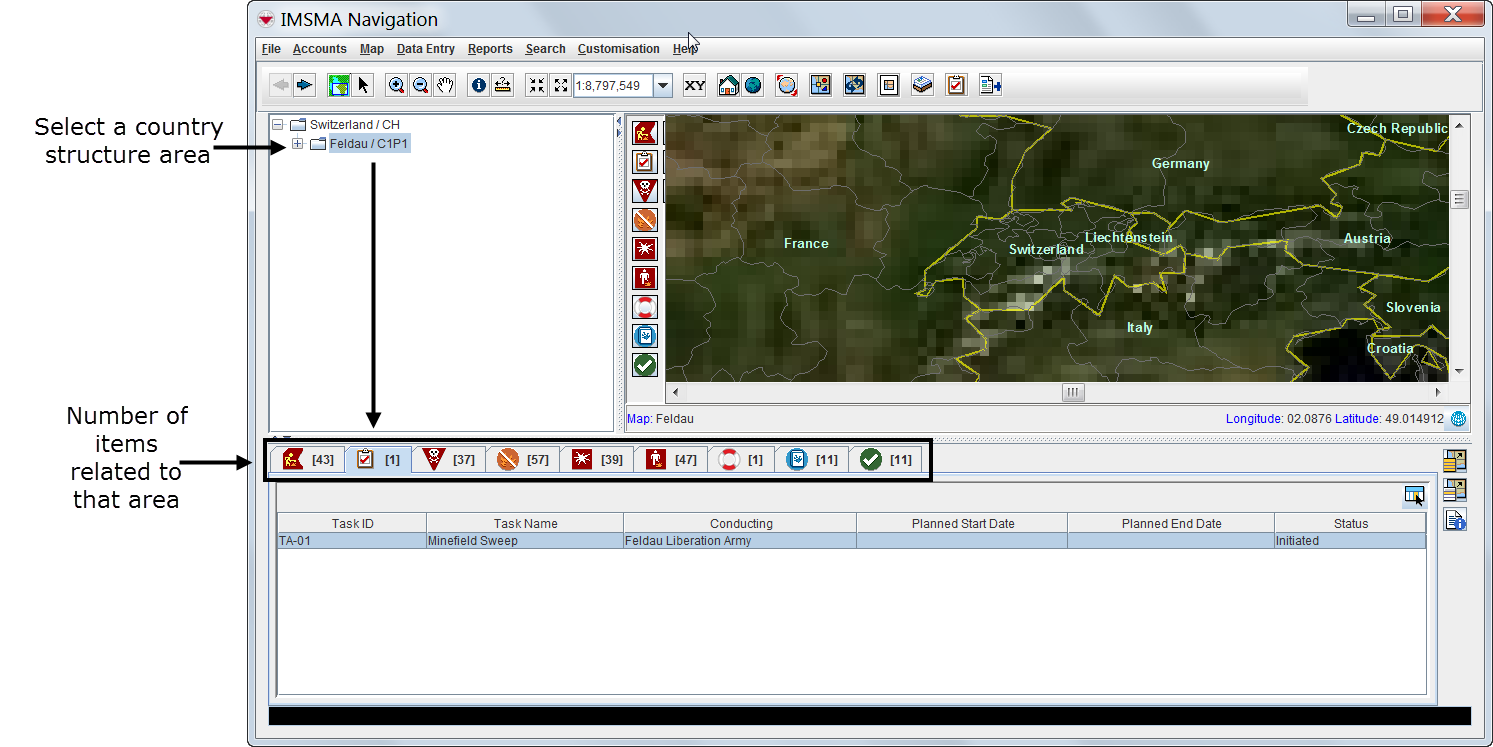

- Displaying items on the map
- File:VaB02.png
| Represents a tip or note for using IMSMA Mobile. | Items with a grey background in the items pane do not have geographic coordinates and they cannot be displayed on the map. |
| File:VaB03.png | |
- Identifying an item from the map
Viewing Additional Data on the Map
| How To |
|---|
|
{{#if:Enable an IMSMA Theme | |}}{{#if:Change IMSMA Theme Display Properties | |}}{{#if:Change the Display Order of IMSMA Themes | |}}{{#if:Display the Item Icon on the Map from the Current View | |}}{{#if:View the GIS Map Toolbar Options | |}}{{#if:View the Previous and Next Map in the Series | |}}{{#if:Select Icons on the Map | |}}{{#if:Display the Area and Length of a Polygon | |}}{{#if:Identify Objects on the Map | |}}{{#if:Measure Distance on the Map | |}}{{#if:Reposition the Map Image | |}}{{#if:Lasso an area on the Map | |}}{{#if:Zoom in on and Recentre the Map | |}}{{#if:Change the Map Scale | |}}{{#if:Display the Map at a Larger Scale | |}}{{#if:Display the Map at a Smaller Scale | |}}{{#if:Recentre the Map to Coordinates | |}}{{#if:Display the Original Map View | |}}{{#if:Change the Map Projection | |}}{{#if:Display the Full Extent | |}}{{#if: Change the Coordinate Reference System Display | |}}{{#if:Refresh the Map | |}}{{#if:Control the Page Layout | |}}{{#if:View the Map Layout Toolbar Options | |}}{{#if:Control the Coordinate Display | |}}{{#if:|
|
- Using the map tools
| Represents a tip or note for using IMSMA Mobile. | Using the map tools activates the map status bar in the bottom of the IMSMA Navigation window. |
- Displaying items by subcategories
- File:VaB07.png
- Displaying auxiliary data
- Displaying labels
Browsing the Items Pane
Rearranging Displayed Items
Displaying New Column Headings
Viewing a Specific Item Current View Window
| How To |
|---|
|
{{#if:Access the Current View Windows | |}}{{#if:View a Field Report from the Current View | |}}{{#if:Print an Item from the Current View | |}}{{#if:Display the Item Icon on the Map from the Current View | |}}{{#if:Display the Item Associated Location View | |}}{{#if:Display Data for a Selected Item Record from a Location View | |}}{{#if:|
|
| Represents a tip or note for using IMSMA Mobile. | Current view windows can be customised and may present different tabs and summary headings. Contact your local administrator if you cannot find the links table. |
Viewing Linked Items of the Selected Item


| Represents a tip or note for using IMSMA Mobile. | Links reflect the reconciliation steps performed before the approval of the selected item. For more details on reconciling and approving data, see Reconciling and Approving Data in IMSMANG. |
Viewing Historic Details

Browsing Locations
| How To |
|---|
|
{{#if:Display Data for a Selected Item Record from a Location View | |}}{{#if:Change the Status of a Selected Item Record | |}}{{#if:|
|

Browsing Tasks

| Represents a tip or note for using IMSMA Mobile. | Tasks do not display in current view windows. |
Viewing Auxiliary Data Lists
| How To |
|---|
|
{{#if:Filter the Explosive Ordnance List | |}}{{#if:Filter the Organisation List | |}}{{#if:Filter the Place List | |}}{{#if:|
|
- Choose Data entry > select an auxiliary data type.


| Represents a tip or note for using IMSMA Mobile. | Lists of auxiliary data provide direct access for adding new data or editing existing data. |