Display the IMSMA Control Centre Icon: Difference between revisions
Jump to navigation
Jump to search
No edit summary |
No edit summary |
||
| Line 7: | Line 7: | ||
</div></li> | </div></li> | ||
<li>The IMSMA icon [[Image:Control_Centre_Icon.png|20 px|IMSMA Control Centre]] will be displayed in the [[Glossary#N|notification area]] of your computer. </li> | <li>The IMSMA icon [[Image:Control_Centre_Icon.png|20 px|IMSMA Control Centre]] will be displayed in the [[Glossary#N|notification area]] of your computer. </li> | ||
<li> | <li>Right-click the Control Centre Icon. | ||
[[Image:SaS07 no selected.png|IMSMA Tray Launcher Menu|center]] | [[Image:SaS07 no selected.png|IMSMA Tray Launcher Menu|center]] | ||
Revision as of 11:56, 22 March 2015
Follow these steps if you want to display the control centre icon:
- Double-click the IMSMA Tray Launcher icon on the computer's desktop or, choose Start Menu > Programs > IMSMA Tray Launcher.
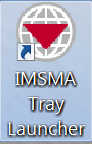
IMSMA Tray Launcher IMSMA Tray Launcher Icon
- The IMSMA icon
 will be displayed in the notification area of your computer.
 - Right-click the Control Centre Icon.
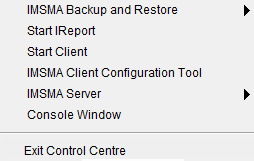
IMSMA Tray Launcher Menu IMSMA Tray Launcher Menu


Menu Options
In this menu you will find the menu options to: