Using Data Entry Forms: Difference between revisions
No edit summary |
No edit summary |
||
| Line 17: | Line 17: | ||
|[[HowTo:Enter Data Information in the Field Report|Enter Date Information in the Field Report]] | |[[HowTo:Enter Data Information in the Field Report|Enter Date Information in the Field Report]] | ||
|[[HowTo:Enter Country Structure Data in the Field Report|Enter Country Structure Data in the Field Report]] | |[[HowTo:Enter Country Structure Data in the Field Report|Enter Country Structure Data in the Field Report]] | ||
|[[HowTo:Enter Organisation Data in the Field Report|Enter | |[[HowTo:Enter Organisation Data in the Field Report|Enter Organisation Data in the Field Report]] | ||
|[[HowTo:Enter Place Data in the Field Report|Enter Place Data in the Field Report]] | |[[HowTo:Enter Place Data in the Field Report|Enter Place Data in the Field Report]] | ||
|[[HowTo:Enter Explosive Data in the Field Report|Enter Explosive Data in the Field Report]] | |[[HowTo:Enter Explosive Data in the Field Report|Enter Explosive Data in the Field Report]] | ||
Revision as of 15:54, 4 September 2012
Field report templates can present different data entry formats: alphanumeric or numeric-only fields, multiple or single-select lists and widgets, which contain standardised information that can automatically be displayed on the field report template.
Once completed, a field report is ready to be saved or submitted for approval.
Your field report templates have been designed by your local system administrator. Follow your local SOP or contact your local system administrator for guidance on data entry formats.
| How To |
|---|
|
{{#if:Display the Field Report Templates Window and Filter Templates | |}}{{#if:Open a Field Report Template | |}}{{#if:Enter an Object ID in the Field Report | |}}{{#if:Enter Date Information in the Field Report | |}}{{#if:Enter Country Structure Data in the Field Report | |}}{{#if:Enter Organisation Data in the Field Report | |}}{{#if:Enter Place Data in the Field Report | |}}{{#if:Enter Explosive Data in the Field Report | |}}{{#if:Enter Geospatial Data in the Field Report | |}}{{#if:Enter Polygone/Polyline Points in the Field Report | |}}{{#if:Retrieve Geographic Coordinates from the Map in the Field Report | |}}{{#if:Import Polygone/Polyline Points from an Excel Spreadsheet in the Field Report | |}}{{#if:Add an Attachment to a Field Report | |}}{{#if:Download an Attachment of a Field Report | |}}{{#if:Manage Field Report Attachments | |}}{{#if:Submit Field Reports | |}}{{#if:Save Field Reports to the Workbench | |}}{{#if:|
|
Open a Field Report Template
- Choose Data Entry > Field Reports > Add Field Report... File:Test.png
- Select the field report template of your choice and click OK. File:Select Template.png >Click
- To add polygon/polyline points click File:Select an Explosive.png.
 to select an organisation.
 >Click
  to select a place.
 >Click File:Select an Explosive.png to select explosive ordnance.

| File:LightBulb.png To add a quantity, enter the value in the Quantity column. |


Locate the spreadsheet in your directory and click Open.
Entering Data into the Field Report Template===
| File:LightBulb.png Text fields take alphanumeric values. Numeric fields take numeric values only. |
>Click  to generate an ID number.
>Click  to select a date.

>Click  to select a country structure area.
|
File:LightBulb.png To remove explosive ordnance from your field report template, select the row and click. File:Remove.png |
|
File:LightBulb.png To remove explosive ordnance from your field report template, select the row and click File:Remove.png. On hazard reduction templates, the explosive ordnance widget presents additional fields. |
>Click File:Pencil.png to enter geographic coordinates.
File:Geographic Coordinates.png
- To add single points, click File:Select an Explosive.png.
| File:LightBulb.png See the Point window on this page for help entering information in the window. |
| File:Error Message.png Enter points of polygons or polylines in the order they should be drawn in. Indicate the sequence in the Point No. field. |
- To retrieve geographic coordinates from your map, click File:Retrieve.png

| File:Error Message.png Geographic coordinates that are retrieved from the map are stored in WGS84 decimal degrees format. |
- To import polygons and polylines from an Excel spreadsheet, click
 .
.
- To import polygons and polylines from an Excel spreadsheet, click

| File:LightBulb.png Ensure that the spreadsheet displays the following columns and data. |
Adding Attachments to the Field Report Template
- Click File:Click Add.png File:Click Add 2.png
- Click
 to upload a new attachment
File:Legend Title.png
File:Legend Title.png
For more information see Field Report Attachments.
to upload a new attachment
File:Legend Title.png
File:Legend Title.png
For more information see Field Report Attachments.

Saving the Field Report Template
- Click Save. File:Save.png
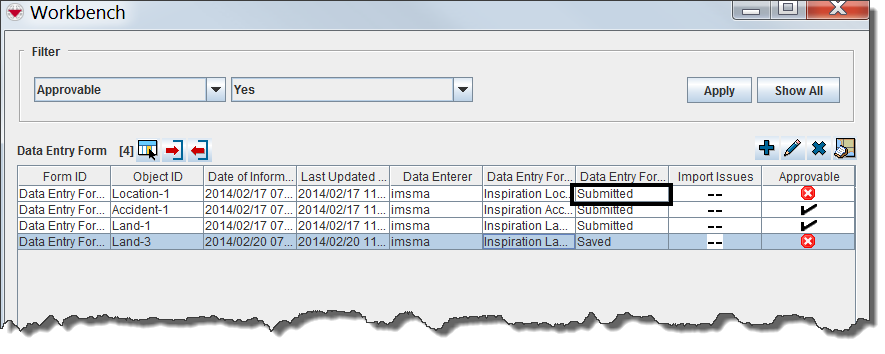
File:LightBulb.png The field report is added to The Workbench with a status of Needs Completion.  and click File:Pencil.png. and click File:Pencil.png.
|
Submitting the Field Report Template
- Click Submit.
File:Submit.png
File:LightBulb.png The field report is added to The Workbench with a status of Needs Approval.